The Problem: Managing Multiple Containers from the CLI
Running a single container on your local machine is straightforward. A quick docker run or docker compose up gets the job done, and monitoring is as simple as checking one terminal window.
The friction begins when a local development environment scales into a microservices architecture. Once you have half a dozen containers running side by side (an authentication service, a background worker, an API gateway, a PostgreSQL database, and a cache), basic maintenance becomes surprisingly fragmented. Keeping tabs on system health usually requires a sprawling grid of tmux panes or terminal splits: one pane tailing auth logs, another watching database output, a third running docker ps on a loop to check exit codes, and another waiting with commands to restart failing containers.
# Routine commands during local developmentdocker ps --format "table {{.ID}}\t{{.Names}}\t{{.Status}}\t{{.Ports}}"docker logs -f --tail 50 <container_id>docker restart <container_id>docker system dfEvery time a service crashes, you have to run docker ps, find and copy its truncated container ID, and stitch together another command to inspect or restart it. Meanwhile, repeated image rebuilds silently deposit dangling layers and orphaned volumes across your disk until Docker eventually runs out of space.
Shell aliases save a few keystrokes, but they do not solve the fundamental problem: your attention is scattered across disparate terminal splits and container IDs just to answer routine questions about what your local environment is doing.
Bridging the Gap Between the CLI and Heavy GUIs
To solve this visibility problem, developers often turn to graphical tools like Docker Desktop. While a GUI provides a convenient visual overview, it introduces notable memory and CPU overhead, which is the last thing you want when your laptop is already compiling code and running heavy services locally.
This is where Lazydocker fits in. Built in Go by Jesse Duffield (the author of lazygit), Lazydocker is an open-source Terminal User Interface (TUI) that gives you the visual clarity of a dashboard without leaving the shell. It runs as a lightweight, static binary, uses negligible system resources, and operates entirely through keyboard shortcuts.
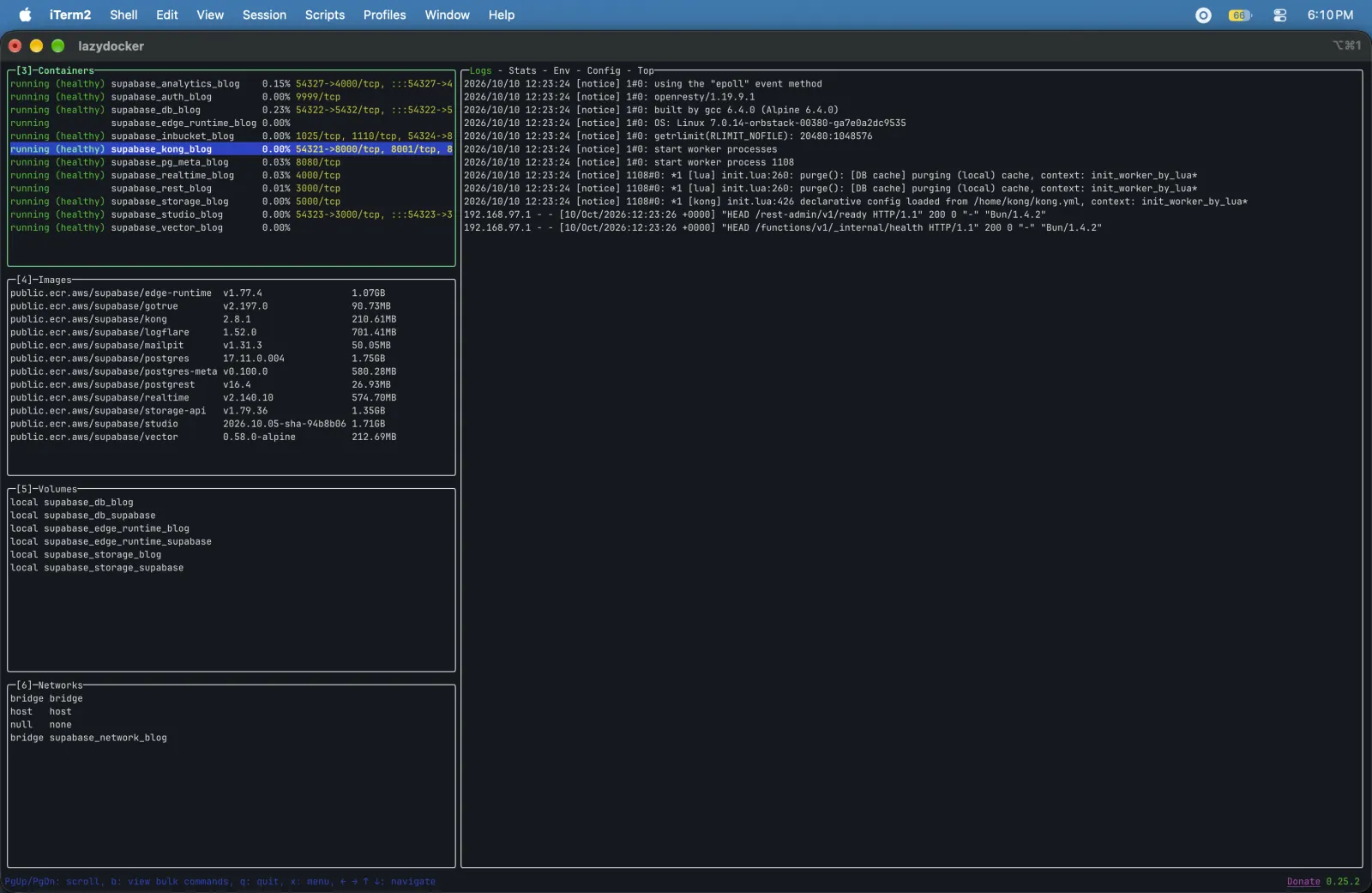
Instead of running disjointed commands across multiple windows, Lazydocker gives you immediate visibility across your whole Docker environment:
- Containers and Compose Services: Track operational status, health checks, and port forwardings at a glance.
- Live Log Streams: Tail output from any container instantly, without manually running
docker logs -f. - Resource Metrics: View real-time ASCII graphs showing CPU and memory consumption per container.
- Images and Layers: Inspect layer ancestry, image history, and total sizes on disk.
- Volumes and Networks: Identify active storage usage and inspect bridge networks.
The interface supports full keyboard navigation (along with optional mouse support) and ships as a single static binary.
Installation
Because Lazydocker is distributed as a Go binary, installation takes only a moment. You just need an active Docker daemon running locally.
Requirements
- Docker:
>= 19.03(API>= 1.24) - Docker Compose:
>= 1.23.2(optional, for Compose environments)
macOS (Homebrew)
brew install lazydockerLinux
Using the official installation script:
curl https://raw.githubusercontent.com/jesseduffield/lazydocker/master/scripts/install_update_linux.sh | bashOr via the AUR on Arch Linux:
yay -S lazydockerWindows
Using Scoop:
scoop install lazydockerUsing Chocolatey:
choco install lazydockerRunning inside Docker
If you prefer not to install the binary directly on your host machine, you can run Lazydocker in an ephemeral container by mounting the Docker socket:
docker run --rm -it \ -v /var/run/docker.sock:/var/run/docker.sock \ -v /yourpath/config:/.config/jesseduffield/lazydocker \ lazyteam/lazydocker:latestNavigating Daily Workflows
To start Lazydocker, navigate to your project directory and run:
lazydockerIf the current folder contains a docker-compose.yml file, Lazydocker automatically groups your containers by service. You can jump between the primary panels (Project, Containers, Services, Images, Volumes) using [ and ], or navigate the active list with standard j and k vim keys.
Live Log Streaming
Inspecting logs is usually the first thing you do when an application misbehaves. In Lazydocker, selecting any container immediately streams its stdout and stderr in the main panel. There is no need to open a dedicated terminal window or remember --tail and -f flags.
When you need to investigate an earlier stack trace, press Enter to focus directly on the log panel. From there, you can scroll through previous output at your own pace without interrupting the running container. Pressing m expands the logs into a full-screen view, which is especially useful when debugging verbose JSON payloads or multiline stack traces.
Real-Time ASCII Resource Monitoring
Beside the log output, Lazydocker renders live ASCII graphs tracking CPU and memory consumption for the highlighted container.
During local development, this immediate feedback makes it easy to spot runaway background jobs, unoptimized database queries, or memory leaks before your laptop fans spin up or your machine runs low on memory. You get instant operational insight without having to install a separate local Prometheus or Grafana stack.
One-Touch Container Management
Managing container lifecycles is where the interface saves the most time. Instead of looking up container IDs and typing commands by hand, you can perform essential lifecycle actions with single keystrokes:
r: Restart the selected container or Compose service.s: Stop a running container.d: Remove a stopped container.e: Execute into the container and open an interactive shell session.
Pressing x brings up a contextual menu showing every action available for the currently highlighted item, which helps you discover shortcuts without memorizing documentation.
Safe Disk Space Cleanup
Over time, daily builds and test runs accumulate untagged images, dangling layers, and abandoned volumes that silently occupy gigabytes of disk space.
In the Images and Volumes panels, Lazydocker clearly separates resources that are actively in use from those that are unattached. You can inspect an individual image layer by layer and press d to remove it. When you want to clear out unneeded artifacts in bulk, you can trigger a system prune directly from the UI, complete with a confirmation dialog that protects you from accidentally wiping active volumes.
Keybindings Cheatsheet
Here are the primary shortcuts that cover most daily development workflows:
| Key | Action |
|---|---|
[ / ] | Switch between panels (Project, Containers, Services, Images, Volumes) |
j / k or ↑ / ↓ | Navigate items in the active panel |
Enter | Focus or expand the selected panel |
Esc | Return to the previous view or cancel an action |
r | Restart the selected container or service |
s | Stop the selected container |
d | Remove the selected container, image, or volume |
m | Maximize the current panel or log view to full screen |
e | Open an interactive shell inside the selected container |
b | Rebuild a Compose service |
x | Open the contextual command menu |
Summary
Lazydocker does not replace the Docker CLI for automated scripting, CI/CD pipelines, or production orchestration. Its purpose is to eliminate the day-to-day friction of local development. By pulling log streaming, resource monitoring, lifecycle management, and disk cleanup into an interactive terminal interface, it saves you from juggling container IDs and pane splits.
To make launching it second nature, consider adding a short alias to your shell configuration (~/.zshrc or ~/.bashrc):
alias lzd='lazydocker'With one command, you get a lightweight control panel for your local stack that stays completely out of your way until you need it.
If your workflow extends beyond standalone Docker hosts into orchestrating multi-container clusters, check out our guide on K9s: Terminal UI for Kubernetes Clusters for a similar terminal UI built specifically for Kubernetes.